


Midocean API Data Fetch for Shopify – Step-by-Step No-Code & Custom API Sync
Introduction
Managing product data, stock availability, price lists, and print details can be overwhelming when dealing with large catalogs. Midocean API provides a robust way to fetch this information in real time, ensuring that your Shopify store always stays updated with the latest product feeds.
In this guide, we’ll explore how to fetch Midocean API data for Shopify with two approaches:
- No-Code API Fetch with Postman & CSV Import
- Custom Shopify App Integration with REST API
By the end, you’ll have a complete workflow for automating product synchronization between Midocean and Shopify, improving efficiency, SEO, and conversion rates.
Why Use Midocean API with Shopify?
- ✅ Real-Time Data – Get the latest stock updates & pricing.
- ✅ Multi-Format Support – JSON, XML, CSV.
- ✅ Scalable Imports – Perfect for large catalogs.
- ✅ Automation Ready – Sync stock & prices without manual updates.

Step 1: Get Your API Key
Before fetching data, request your Midocean API key.
- You’ll use the header
x-Gateway-APIKey. - Format supported:
JSON, XML, CSV.
Example request header:
GET https://api.midocean.com/gateway/products/2.0?language=en
x-Gateway-APIKey: your-api-key-here

Step 2: Two-Way API Fetch with Postman
- Open Postman
- Set GET request
- Use endpoint:
https://api.midocean.com/gateway/products/2.0?language=en - Add header:
- Key:
x-Gateway-APIKey - Value:
your-api-key
- Key:
📌 You can fetch:
- Product Information
- Stock Updates
- Price Lists
- Print Information
👉 Save results as JSON or CSV for Shopify bulk import.

Step 3: Importing Data into Shopify (No-Code CSV Method)
Once you have the CSV file from Postman:
- Go to Shopify Admin → Products → Import.
- Upload the Midocean CSV file.
- Map fields to Shopify (Title, Description, Price, SKU, Stock).
- Complete import.
⚡ Ideal for bulk uploads and stores with regular updates.
Step 4: Custom API Sync with Shopify REST API
For automation, build a custom Shopify private app:
- Use Shopify’s REST Admin API.
- Fetch data from Midocean in JSON.
- Push to Shopify with an automated script.
Example: Node.js Script
const fetch = require("node-fetch");

const MIDOCEAN_API = "https://api.midocean.com/gateway/products/2.0?language=en";
const SHOPIFY_API = "https://yourstore.myshopify.com/admin/api/2025-01/products.json";

const headers = {
  "x-Gateway-APIKey": "your-midocean-key",
  "X-Shopify-Access-Token": "your-shopify-token",
  "Content-Type": "application/json"
};

async function syncProducts() {
  const res = await fetch(MIDOCEAN_API, { headers });
  const products = await res.json();

  for (let product of products.items) {
    await fetch(SHOPIFY_API, {
      method: "POST",
      headers,
      body: JSON.stringify({ product })
    });
  }
}

syncProducts();
Step 5: Stock Sync Automation
Schedule your script using CRON jobs or apps like Zapier.
- Hourly Stock Sync
- Daily Price Updates
- Weekly Print Data Refresh
This ensures your Shopify store always displays accurate data.
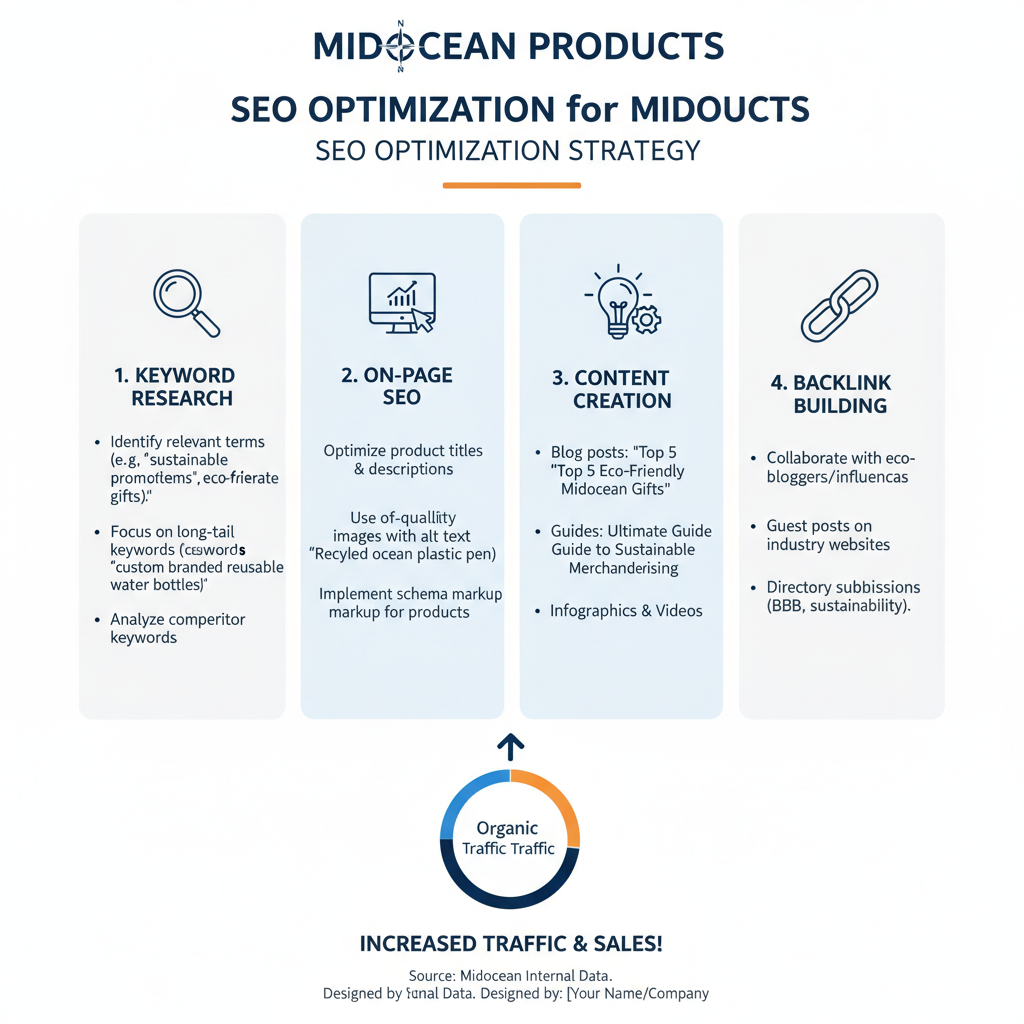
Step 6: SEO Optimization for Midocean Products
Once products are imported, optimize with Rank Math (Shopify SEO app alternative):
- Add Focus Keyword in product titles & descriptions.
- Write unique SEO-friendly descriptions instead of generic imports.
- Add structured data schema for rich results.
- Build internal links across related products & collections.
Step 7: Classic Editor Alternative for Shopify
While Shopify doesn’t have WordPress’s Classic Editor, you can:
- Export descriptions from Midocean API (JSON → CSV).
- Use Shopify’s bulk editor or Matrixify App.
- Retain rich HTML formatting in product descriptions.
Final Thoughts
Integrating Midocean API with Shopify is a game-changer for e-commerce businesses managing large product catalogs. Whether you use the No-Code CSV import or the Custom API Sync, you’ll gain efficiency, accuracy, and scalability.
👉 Want a ready-made solution? Check out:
📞 Contact
Md Mamun Miah
650+ Projects | Web Design & Development Agency | WordPress & Shopify Experts | E-commerce Specialist | SEO & Digital Marketing