



Min and Max Quantity by Stock in WooCommerce: Step-by-Step Guide for WordPress
Min and Max Quantity by Stock in WooCommerce: Step-by-Step Guide for WordPress is essential when you want real control over how products are purchased in your online store. By default, WooCommerce allows customers to add items to the cart as long as stock exists—but it doesn’t intelligently enforce advanced rules like minimum purchase quantities, maximum purchase limits based on available stock, or fixed quantity steps. That’s where store owners start running into problems.
Imagine you have 12 units left in stock, but a customer tries to add 50 to their cart. Or you sell wholesale products that must be purchased in bundles of 5, yet WooCommerce allows single-unit purchases. These gaps create inventory confusion, checkout errors, and unnecessary support requests. If you’re running a high-traffic store using a premium theme like WoodMart, you also need these restrictions to work smoothly with AJAX add-to-cart functionality—without breaking the user experience.
Min and Max Quantity by Stock rules help you protect inventory, enforce business logic, and maintain operational efficiency. Whether you’re managing limited stock products, wholesale quantity rules, pre-orders, or tier-based selling strategies, setting dynamic quantity limits ensures customers can only purchase what’s realistically available. In this step-by-step guide, you’ll learn how to configure minimum and maximum quantities based on stock levels, implement automatic adjustments, and ensure full compatibility with WoodMart—while keeping your store fast, scalable, and user-friendly.
Why Min and Max Quantity by Stock in WooCommerce?
- Prevent overselling: Automatically limit the number of products customers can add to their cart based on stock.
- Encourage bulk purchasing: Use quantity steps for products that are sold in packs or sets.
- Smooth UX: Hide or disable quantity buttons when maximum stock is reached, making it easy for users to shop without errors.
- AJAX-friendly: Works seamlessly with Woodmart’s dynamic mini-cart and cart updates.
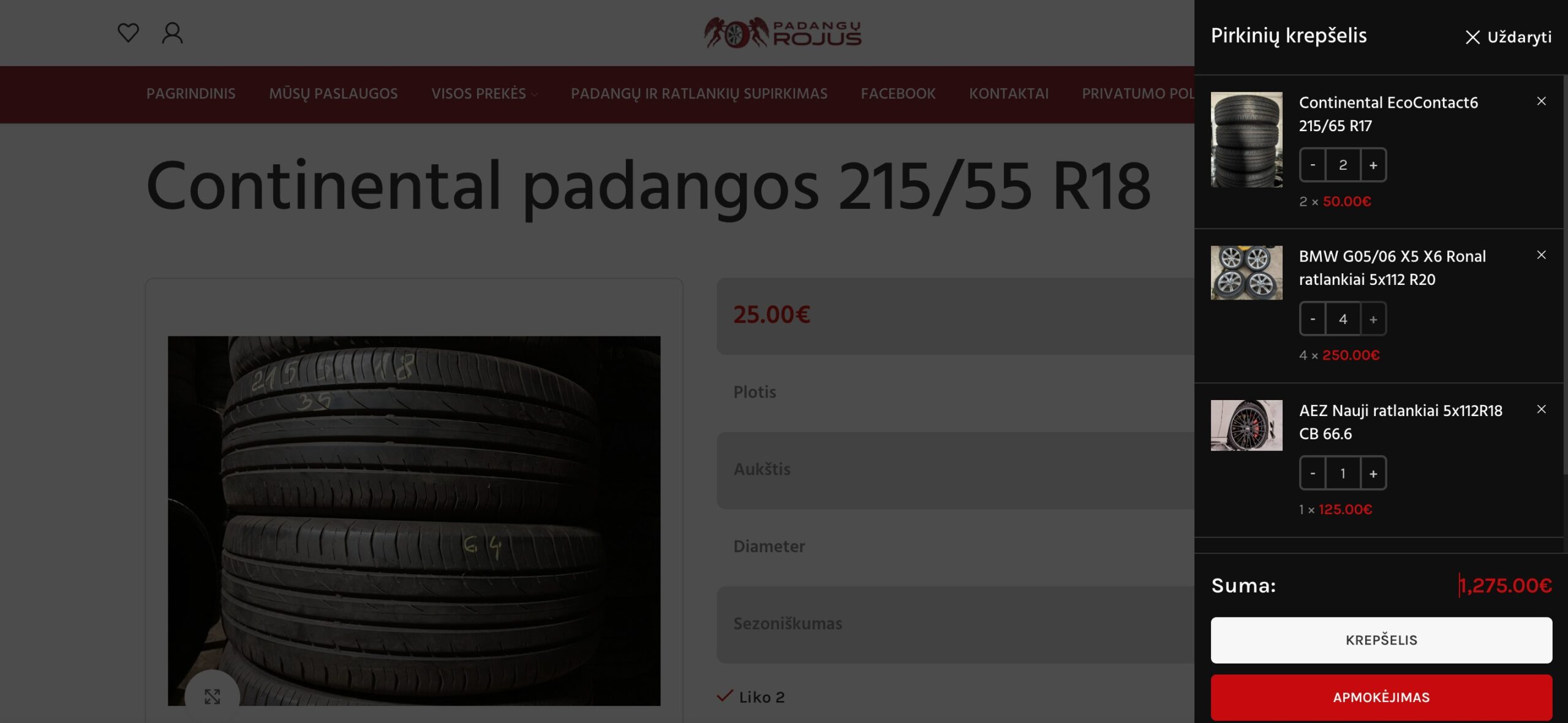
Min and Max Quantity by Stock in WooCommerce
Automatically set min, max, and step values based on product stock, validate cart quantities, and disable the plus button when stock is reached. Works on any theme with AJAX updates.
// Set min/max quantity based on stock
add_filter('woocommerce_quantity_input_args', function($args, $product){
    $stock = $product->get_stock_quantity();
    $cart_qty = 0;
    foreach (WC()->cart->get_cart() as $item){
        if($item['product_id'] == $product->get_id()) $cart_qty = $item['quantity'];
    }
    if($stock>=2){ $args = ['min_value'=>2,'max_value'=>$stock,'step'=>2,'input_value'=>$cart_qty?:2]; }
    elseif($stock==1){ $args = ['min_value'=>1,'max_value'=>1,'step'=>1,'input_value'=>1]; }
    return $args;
}, 10, 2);

// Disable plus button when stock limit reached
add_action('wp_footer', function(){ ?>
<script>
jQuery(function($){
    function disablePlus(){ $('.woocommerce-cart .cart_item, .woocommerce-mini-cart .mini_cart_item').each(function(){
        var $i=$(this).find('input.qty'),$p=$(this).find('.plus,input.plus');
        if($i.length && $p.length){ var q=parseInt($i.val(),10),m=parseInt($i.attr('max'),10);
            if(!isNaN(m) && q>=m){ $p.prop('disabled',true); $i.prop('readonly',true); } else { $p.prop('disabled',false); $i.prop('readonly',false); }
        }
    }); }
    disablePlus();
    $(document.body).on('updated_wc_div updated_cart_totals wc_fragments_refreshed', disablePlus);
    setInterval(disablePlus,2000);
});
</script>
<?php });
Benefits:
- Auto min/max & step values
- Cart validation & auto adjustment
- Works on all themes with AJAX
- Plus button disabled when stock reached
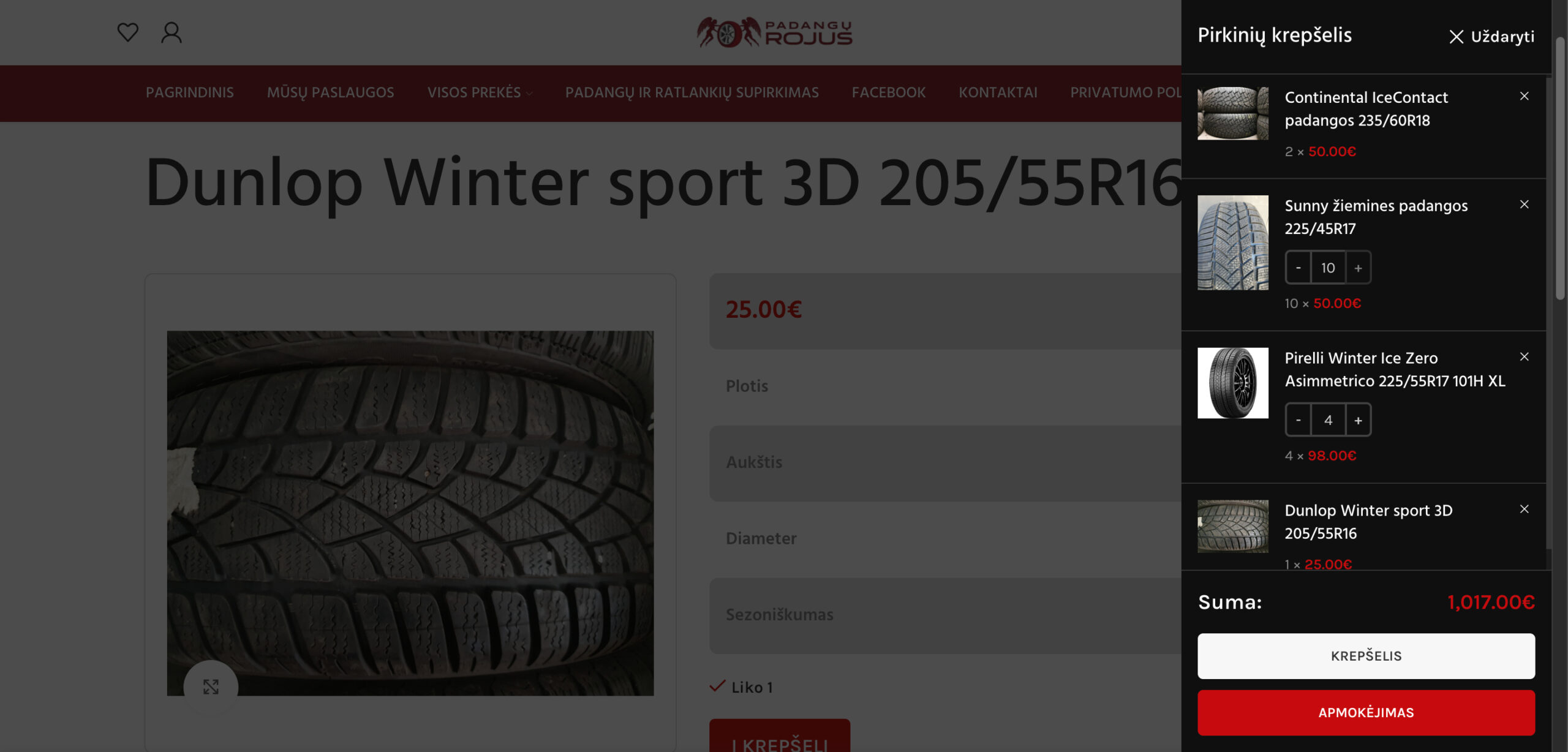
Full Code for Min and Max Quantity by Stock in WooCommerce
Here’s the complete PHP and JavaScript code for your child theme functions.php:
/**
 * ==============================================
 *  Custom Min/Max Quantity Rules (Woodmart Ready)
 *  Author: Md Mamun Miah / Webzlo
 * ==============================================
 */

/**
 * Set min/max quantity rules per product
 */
add_filter('woocommerce_quantity_input_args', 'webzlo_min_max_quantity_rules', 10, 2);
function webzlo_min_max_quantity_rules($args, $product) {
    $stock = $product->get_stock_quantity();

    // Get current cart quantity for this product
    $cart_qty = 0;
    foreach (WC()->cart->get_cart() as $cart_item) {
        if ($cart_item['product_id'] == $product->get_id()) {
            $cart_qty = $cart_item['quantity'];
            break;
        }
    }

    if ($stock >= 2) {
        $args['min_value']   = 2;
        $args['max_value']   = $stock;
        $args['step']        = 2;
        $args['input_value'] = $cart_qty > 0 ? $cart_qty : 2;
    } elseif ($stock == 1) {
        $args['min_value']   = 1;
        $args['max_value']   = 1;
        $args['step']        = 1;
        $args['input_value'] = 1;
    }

    return $args;
}

/**
 * Validate cart quantities
 */
add_action('woocommerce_check_cart_items', 'webzlo_validate_cart_quantity');
function webzlo_validate_cart_quantity() {
    foreach (WC()->cart->get_cart() as $cart_item_key => $cart_item) {
        $product = $cart_item['data'];
        $stock   = $product->get_stock_quantity();
        $qty     = $cart_item['quantity'];

        if ($stock >= 2) {
            $max_allowed = $stock;
            if ($qty < 2 || $qty > $max_allowed || $qty % 2 != 0) {
                wc_add_notice(sprintf(
                    __('The quantity for "%s" must be in steps of 2 and cannot exceed available stock (%d).', 'woocommerce'),
                    $product->get_name(),
                    $stock
                ), 'error');
            }
        } elseif ($stock == 1 && $qty != 1) {
            wc_add_notice(sprintf(
                __('The quantity for "%s" must be exactly 1.', 'woocommerce'),
                $product->get_name()
            ), 'error');
        }
    }
}

/**
 * Adjust cart quantities automatically
 */
add_action('woocommerce_before_calculate_totals', 'webzlo_adjust_cart_quantities');
function webzlo_adjust_cart_quantities($cart) {
    if (is_admin() && !defined('DOING_AJAX')) return;

    foreach ($cart->get_cart() as $cart_item_key => $cart_item) {
        $product = $cart_item['data'];
        $stock   = $product->get_stock_quantity();
        $qty     = $cart_item['quantity'];

        if ($stock >= 2) {
            $step = 2;
            $max_allowed = $stock;

            $new_qty = floor($qty / $step) * $step;
            if ($new_qty < 2) $new_qty = 2;
            if ($new_qty > $max_allowed) $new_qty = $max_allowed;
            if ($qty !== $new_qty) {
                $cart->set_quantity($cart_item_key, $new_qty);
            }
        } elseif ($stock == 1 && $qty != 1) {
            $cart->set_quantity($cart_item_key, 1);
        }
    }
}


/**
 * For Woodmart theme AJAX Re-bind JS for Quantity Step + Stock Handling
 */
add_action('wp_footer', 'webzlo_woodmart_disable_plus_stock');
function webzlo_woodmart_disable_plus_stock() {
    ?>
    <script type="text/javascript">
    jQuery(document).ready(function($){

        function disablePlusButtonsWoodmart() {
            // Handle mini-cart and cart page
            $('.woocommerce-mini-cart .mini_cart_item, .woocommerce-cart .cart_item').each(function(){
                var $item = $(this);
                var $qtyInput = $item.find('input.qty');
                var $plusBtn = $item.find('input.plus');

                if($qtyInput.length && $plusBtn.length){
                    var qty = parseInt($qtyInput.val(), 10);
                    var max = parseInt($qtyInput.attr('max'), 10);

                    if(!isNaN(max) && qty >= max){
                        $plusBtn.prop('disabled', true).addClass('disabled');
                        $qtyInput.prop('readonly', true);
                    } else {
                        $plusBtn.prop('disabled', false).removeClass('disabled');
                        $qtyInput.prop('readonly', false);
                    }
                }
            });
        }

        // Initial run
        disablePlusButtonsWoodmart();

        // Run after Woodmart AJAX updates
        $(document).on('woodmart-ajax-loaded woodmartUpdateCart woodmartThemeModuleReinit', function(){
            disablePlusButtonsWoodmart();
        });

        // WooCommerce AJAX fragments refresh
        $(document.body).on('wc_fragments_refreshed updated_wc_div updated_cart_totals', function(){
            disablePlusButtonsWoodmart();
        });

        // Optional fallback: check periodically
        setInterval(disablePlusButtonsWoodmart, 2000);

    });
    </script>
    <?php
}
How This Code Works: Min and Max Quantity by Stock in WooCommerce
- Dynamic Min/Max Quantity:
Setsmin_value,max_value, andstepautomatically based on stock quantity. Products can have step increments (e.g., packs of 2) or single units if stock = 1. - Validation:
Prevents users from adding quantities that exceed stock or break step rules. - Automatic Adjustment:
If users manually enter wrong quantities, the cart auto-adjusts to valid quantities. - Woodmart AJAX Integration:
The JS ensures plus buttons are disabled when cart quantity reaches stock and works on all pages including mini-cart, cart page, checkout, and product pages.
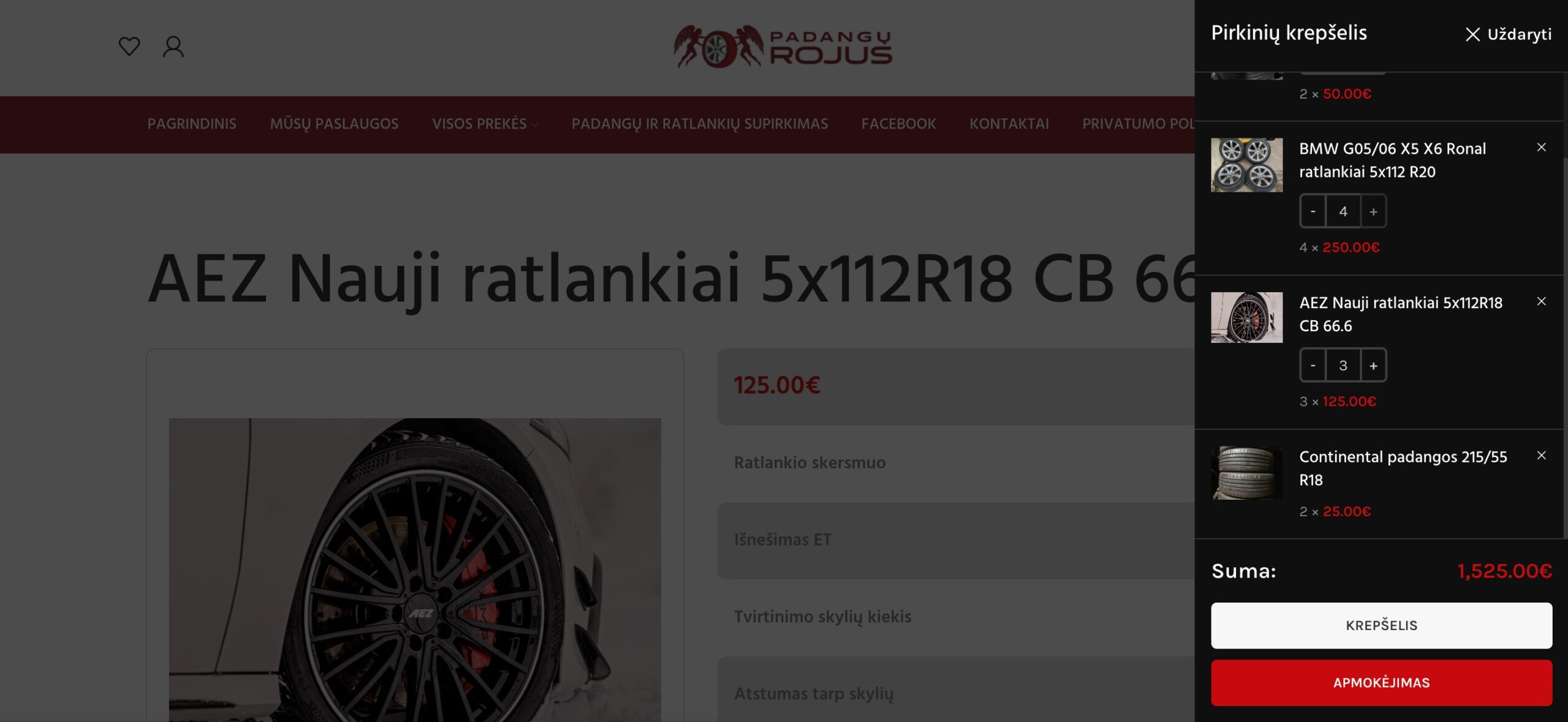
Benefits for Your WooCommerce Store
- Avoid overselling and stock errors.
- Enhance customer experience with clear quantity limits.
- Reduce cart errors and abandoned checkouts.
- Fully compatible with Woodmart AJAX mini-cart updates.
Conclusion
With this custom min/max quantity solution, your WooCommerce store running on Woodmart theme becomes more professional, stock-safe, and user-friendly. No more over-purchases, step errors, or frustrating cart behavior.
You Can Also Read This:
- How to Fix Elementor Stuck on Loading Screen Issue – Editor Not Loading
- Why Elementor Editor Is Not Loading and How to Fix It – Editor Not Loading
- Elementor Blank Page Issue: Causes and Fixes – Editor Not Loading
- How to Fix Elementor Editor Panel Not Loading – Editor Not Loading
- Elementor Preview Not Working? Fix It Now – Editor Not Loading